Use case guide
See enhance photo examples online in practical workflows
Enhance photo examples online are most useful when they show the original problem, the adjustment made, and the result in a realistic setting. Compare the workflow, not just the polished final image.
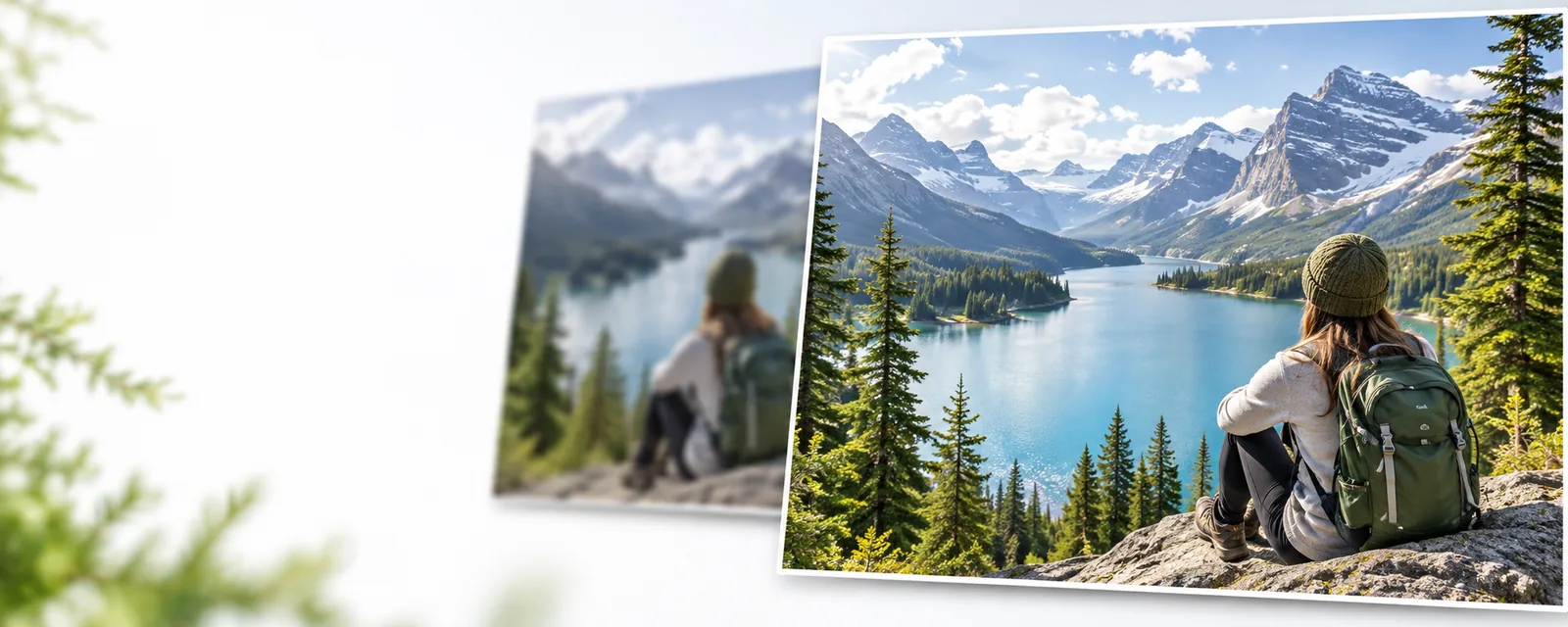
Practical workflows
Three workflows for clearer photo examples
Each workflow starts with a different kind of source image. The goal is to improve the photograph while preserving the details that make it believable.
-
1
Restore a soft portrait
Begin with a face that looks slightly blurred, dark, or washed out. Improve visibility around the eyes, hair, and skin while keeping natural texture instead of creating a plastic finish.
-
2
Refine a product image
Use a product photograph with uneven lighting, a distracting background, or weak edge definition. Balance exposure and clarity so the item is easier to inspect without changing its shape or color.
-
3
Recover an older print
Start with a scanned family photograph that has fading, dust, or mild softness. Correct the most visible defects first, then check that faces, clothing, and background details still match the source.
Keep exploring
Related photo enhancement guides
These related pages cover the practical decisions behind choosing a workflow, checking quality, and preparing an image for enhancement.
- What does it mean to enhance a photo? Get a plain-language explanation of enhancement, including how it differs from simply enlarging an image.
- enhance photo 4k See what changes when you need a larger, sharper image for a screen, print, or detailed crop.
- how to enhance photo online Follow a straightforward online process for preparing, improving, and checking a photograph.
Set expectations
Compliance notes and honest limitations
A strong result depends on the source image and the amount of information it contains. Enhancement can clarify visible evidence, but it cannot reliably recreate missing facts.
It cannot restore invisible detail
If a face, label, or object is completely blurred, cropped out, or hidden in shadow, an enhancement may produce a cleaner-looking guess rather than a faithful recovery.
What to do instead
Use the highest-resolution original available and compare the result with the untouched file.
It cannot guarantee exact colors
Mixed lighting, old scans, and camera processing can shift color. A brighter or more balanced result is not proof that every hue is accurate.
What to do instead
Keep a reference object, known brand color, or the original print nearby when color accuracy matters.
It cannot fix every composition problem
Enhancement may improve clarity and tone, but it will not automatically correct an awkward crop, blocked subject, or distracting arrangement.
What to do instead
Crop or reframe deliberately before the final export, and keep the original for comparison.
It should not replace evidence
A polished image can look more certain than its source. Do not treat enhanced text, faces, or scene details as verified evidence when the original is ambiguous.
What to do instead
Label edited images clearly and retain the source file and editing context.
Compare the approach
A quick pass versus a careful photo workflow
The best photo examples show not only a visible improvement, but also the choices that protect realism and make the result easier to trust.
| Quick enhancement pass | Careful enhancement workflow | |
|---|---|---|
| Primary goal | Make the image look clearer at a glance | Improve clarity while preserving source character |
| Source check | Uses the first available copy | Starts with the largest, cleanest original |
| Portrait detail | May emphasize smoothness or sharpness | Checks eyes, hair, skin, and edges separately |
| Color handling | Accepts automatic color changes | Compares tones with the original or a reference |
| Cropping | Often leaves framing unchanged | Reframes only when it supports the subject |
| Quality check | Judges the image at one display size | Checks both close detail and normal viewing distance |
| Record keeping | Saves only the finished version | Keeps the original beside the enhanced copy |
Example output
What a useful before-and-after comparison shows
A meaningful comparison makes the source visible, labels both versions, and explains what changed. Look for improved readability and balance rather than dramatic edits that overpower the photograph.
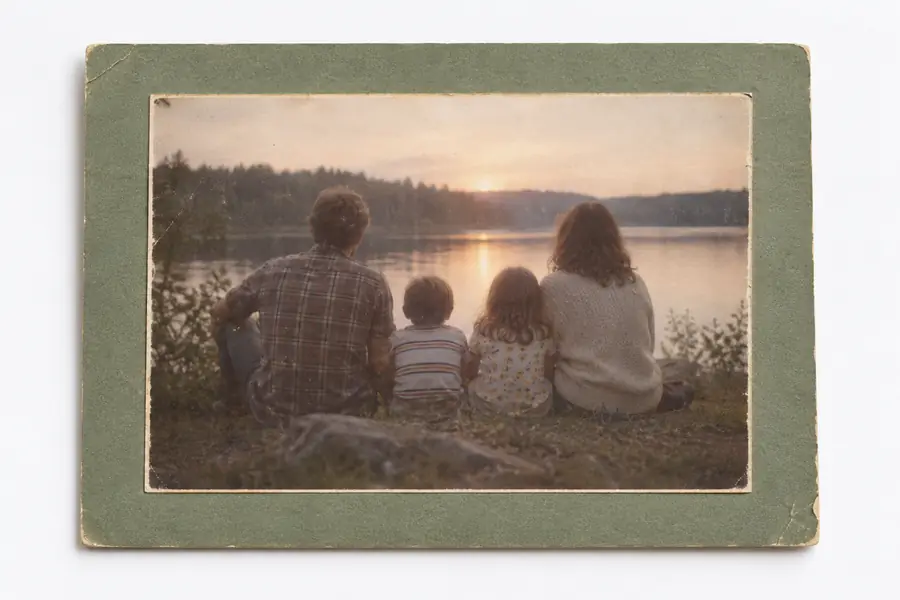

Compare at the same size before judging detail.
OriginalEnhancedNext step
Put the workflow to work on your own image
Use these examples as a checklist: identify the source problem, choose the smallest useful adjustment, and compare the result with the original. A careful review helps you keep improvements believable across portraits, products, pets, and older photographs.
- Start with the highest-quality original
- Check faces, edges, color, and crop
- Keep the untouched image for reference
Scenario FAQ
Questions about photo examples online
Look for a clearly labelled original and result, shown at the same scale. The strongest examples explain whether the change addressed blur, lighting, color, noise, or cropping instead of relying only on a dramatic visual difference.
Portraits with mild softness, product images with uneven lighting, pet photos with low contrast, and older scans with fading are useful candidates. Images with completely missing detail or severe motion blur may show limited improvement.
No enhancement process can reliably recover information that is absent from the source. It may estimate patterns or create a smoother appearance, so ambiguous faces, text, and objects should not be treated as newly verified facts.
Zoom in on skin, hair, fine edges, repeated patterns, and small text, then view the image again at normal size. A natural result usually improves visibility without halos, overly smooth surfaces, strange textures, or colors that conflict with the original.
Yes. Save the original separately and compare it with the enhanced copy before sharing or printing. Keeping both versions makes it easier to identify changes, reverse an unwanted edit, and explain the image's editing history.